Operation Guide: Azure AD
Purpose
This guide describes how configuration is done in Azure AD. See also Access Management
AD Group/User SSO
Prerequisite: - You must be owner on the KaaS Enterprise Application (KaaS Administrator or KaaS Operator inherits)
When a new team needs to be onboarded, the AD groups needs to be added to the 'users and groups' tab in order to link and enable SSO.
Enterprise Applications → Search for 'KAAS' → Users & Groups → add AD groups (example: KaaS_Pilot_developer)
Azure AD SSO setup (see Guide)
App Registration Process
At the time of writing this guide, it is not possible for outsiders to create their own app registrations. This means the following process needs to be carried out, when setting up new app registrations;

More information from the cloud team is provided on sharepoint here - App Registration Details
App Registration Request in ServiceNow
Click on the link Request for App Registration and place the request and include the following details: - Name of subscription to be use in – if any - Name of Owner(s) Only AdminXXXX accounts are accepted as owners - Describe the intended use of the App Registration.
Setup App Registration in Azure AD
Login with your admin account (used in above creation form) in order to setup; - Owner - Permissions - Clients & Secrets - Token Configuration
Detailed setup and naming can be seen under the each of the identity pools below.
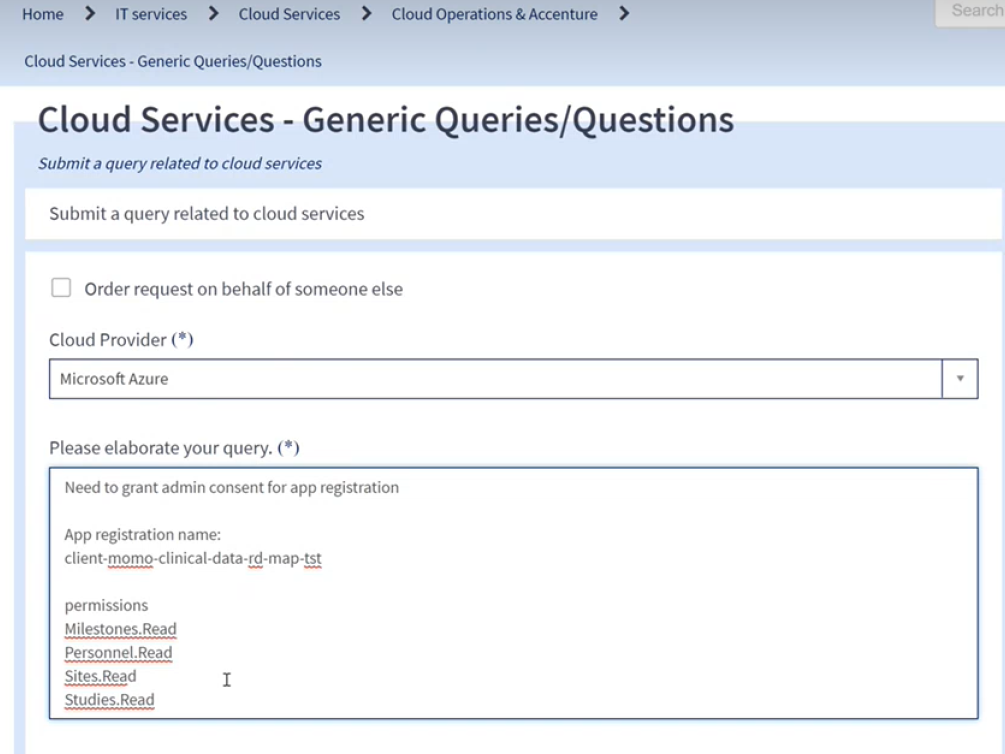
Create 'Grant Admin Consent' Request in ServiceNow
Click on the link Cloud Services - Generic Queries/Questions and ask for admin consent, e.g.:
Share connectivity details with consumer
Depending on what type of app registration that is made, it may be necessary to share connectivity details with the Team requesting. In the ideal world, they should be owners of their team app registrations and retrieve the details themselves, but in some scenarios the details can be shared with mail or through meetings.
KaaS Platform App Registrations & Identity Pools
Below sections out line the different types of app registrations on the KaaS Platform.
Confluent Cloud Platform Identity Pool
An app registration for cross-platform access is created at initial platform setup, that enables developers to read schemas (separated per environment) across teams.
Platform
Naming: kaas-platform-
App Registration → New Registration → "
1 | |
Client app
In order to retrieve the secret, Api permission - add permission - select schema registry.
client-kaas-
Confluent Cloud Team Users Identity Pool
This is the app registration for developers to programmatically read/write on development environment, for their specific team.
Team pool
Naming: kaas-team-
Go to users and Groups → new group → add relevant AD groups Token configuration → add groups claim → (all groups, group ID)
Confluent Cloud Identity Pool for Producer/consumer
Producer
App Registration Naming: kaas-
example: kaas-pilot-pilotapp-dev
Expose an API → Add a scope → save
App roles → Create app role →
*
example: Pilotapp.FullAccess
Consumer (Client)
App Registration Naming: client-kaas-
example: client-kaas-pilot-pilotapp-dev
API permissions - add permission - select relevant accesses
SSO Certificate Renewal Process
Frequency: This activity should be performed on an yearly basis. Even though the certificate validity is approximately 3 years, it has been agreed to perform this activity once every year.
Change Request: A change request needs to be raise in ServiceNow to capture this change.
Access Required: - User needs to be an "Owner" of the enterprise application named "KAAS" and "KAAS-PREPROD". - OrganizationAdmin access on Confluent Cloud Console (for both PreProd and Prod Org)
Pre-Reads: It is recommended to also refer to the latest documentation available on the websites of, Confluent documentation and Microsoft Entra ID documentation.
IMPORTANT !!: - Before proceeding with this activity, make sure you have access to the non-SSO user (emergency account), and that you are able to login with that account. This will be necessary in case the configuration steps described below go wrong resulting in a scenario where you are unable to logon to the platform with your ADMIN account. - Execute the steps on Pre-Prod Org of Confluent Cloud prior to executing the activity on Production Org of Confluent Cloud.
Execution Steps
1. Generate a SAML Certificate on Azure Portal
- Logon to Novo Nordisk's Azure portal (https://portal.azure.com/#home)
- Navigate to the module named "Microsoft Entra ID (previously known as just Active Directory)
- Navigate to "Enterprise Applications" and the search for KAAS (or KAAS-PREPROD in case of Pre-Prod Org)
- Click on the option for managing "Single sign-on"
- In the section named "SAML Certificates", click on the option to edit the token signing certificate.
- Click on the option "New Certificate" and then click Save. Keep the status of this new certificate as "Inactive".
- Note: By default the certificate expiration date is set to 3 years from the date it was created, and we should keep it as is.
- Click on the 3 dots against the newly created certificate (it would be the one with status Inactive) and click on "PEM certificate download".
2. Update SAML Certificate on Confluent Cloud
- Logon to Confluent cloud using your ADMIN account.
- Open the Confluent Cloud Console and go to the Single sign-on page.
- Click on "Edit SSO settings".
- On the first step "Set SSO identifier", keep the value of "SSO identifier" as is. Click Next.
- On the second step "Configure identity provider", keep the values of "URL" and "Entity ID" as is. Click Next.
- On the third step "Configure SSO settings", click on the option "Manually input".
- Keep the values for "SAML sign-on URL" and "Email mapping" as is.
- Click "Upload signing certificate", and then upload the certificate (pem format) downloaded from Azure Entra.
- Click Submit.
- After the changes are submitted, you would be redirected back to the "SSO settings" page.
- Check if the configuration "Enable identity provider-initiated SSO" has been marked as "Enabled". If yes, then "Disable" it (this is as per the original platform configuration).
- It is possible that the "SAML attribute" configuration under "User group permissions" gets removed after the certificate upload. In that case, reassign it by selecting "http://schemas.microsoft.com/ws/2008/06/identity/claims/groups" in the dropdown.
- Verification Step : To verify that the certificate was uploaded correctly, you can check the certificate expiry date visible against the label "X.509 Certificate" under "SSO settings". This should match with the certificate expiry date visible on Azure Entra.
3. Activate the certificate on Azure Portal - Back on Azure Entra -> Enterprise App (KAAS or KAAS-PREPROD) -> Single sign-on configurations. - Click on the 3 dots against the newly created certificate (it would be the one with status Inactive) and click on "Make certificate active".
4. Test the updated SSO configuration
- Test the single sign-on using the test feature in Azure Portal. Navigate to section "Test single sign-on" and click on Test -> Test Sign in. Once you click Test sign in it will automatically sign you in to KaaS with your user id confirming that Single Sign on works as intended.
- You can also test the SSO by trying to sign in to Confluent cloud using your normal account on a browser tab opened in incognito mode (just to make sure that the cookies are not being used from a previous session).
5. Cleanup of old certificate
- Once the new certificate is Active the old certificate can be deleted on Azure portal.