Creating and updating Documentation
Prerequisites
Before you can update KaaS documentation you need write access through the correct role and you need a markdown editor installed and configured on your computer.
- Apply for the contributor role for the KaaS ADO Project
- Install and set up VSCode as text editor, see full guide here
While it is possible to edit markdown files directly within Azure DevOps we advise against it because editor rules are not enforced in this setup.
Documentation in KaaS is done using markdown files, stored as code. The majority of documentation is stored in the repo Wiki. We use the tool "mkdocs" to preview and render the final documentation.
General documentation guideline, see further details in the sections below - There can be a maximum of one main page title (starting with one hashtag # per page) (use multiple hashtags for subsequent subheadings) - Links must be relative when possible (point at path and not full URL/domain - then they will work with mkdocs) - If you are adding or deleting pages, update the mkdocs.yaml to add navigation (for controlling and being compatible to display on KaaS wiki | Novo Nordisk - Developer Portal - A validation pipeline ensures that syntax and format is valid and give warnings if incorrect. - See Lint pipeline for Pull Requests for troubleshooting of warnings
Updating documentation
To update documentation, you should do the following:
- Check out the Documentation repository to your computer (only required the very first time)
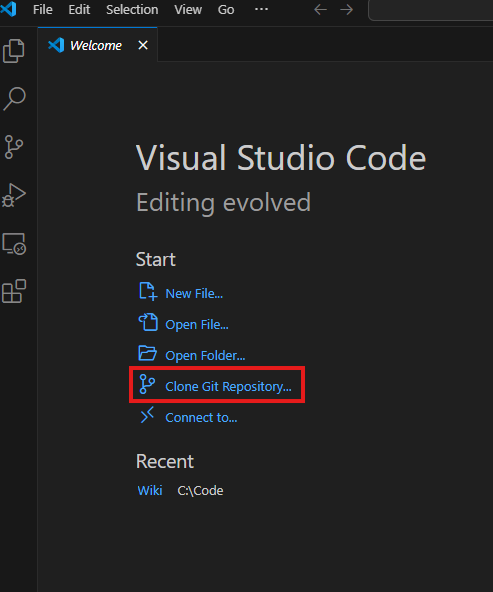
- Open VSCode, on the start screen click "Clone Git Repository"
- This opens a dropdown, paste in the https URL to the Wiki repository:
https://novonordiskit@dev.azure.com/novonordiskit/KaaS%20%28Kafka%20as%20a%20Service%29/_git/Wiki - This opens the Wiki on the main branch, next you need to create branch to make updates on
- Create branch ('draft proposal') on the repo you wish to update
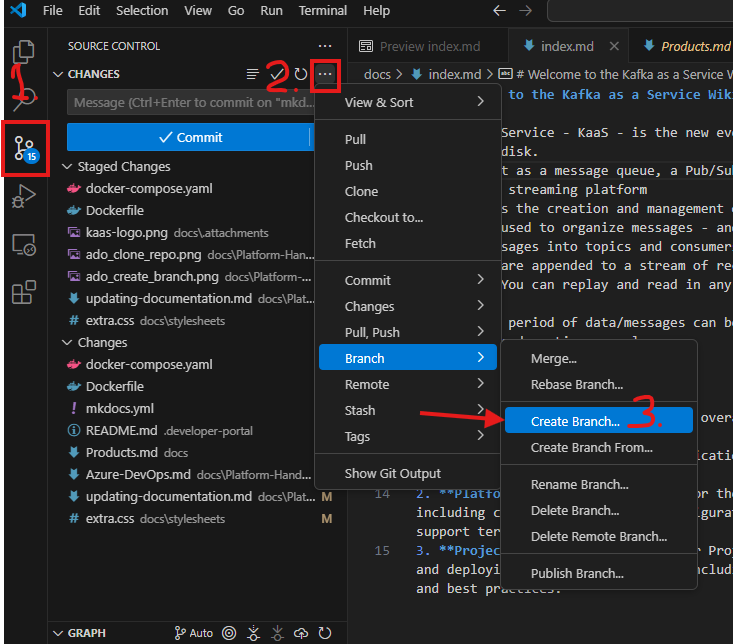
- Open the "Source Control" tab (1. in the picture below)
- Click the 3 menu dots ... (step 2. in the picture)
- Select Branch -> Create Branch and write documentation/
to make it more transparent what the branch concerns (relevant if GIT also contains code) (Step 3.) - Now you can edit the documentation
Adding or removing a page in the documentation
Adding a new page:
- Create your new page as a
.mdfile in the appropriate folder under/docs - Open the
mkdocs.yamlfile - Choose where you want your page to appear:
- To make the page visible everywhere: Add it under the
nav:section - To make the page visible only in Azure DevOps: Add it under the
not_in_nav:section
- To make the page visible everywhere: Add it under the
Example of how to add a page in mkdocs.yaml:
1 2 3 | |
💡 Tip: Make sure to maintain the same indentation as other entries when adding pages in mkdocs.yaml
Removing a page:
- Open
mkdocs.yaml - Remove the page entry from either the
nav:ornot_in_nav:section - Delete the corresponding
.mdfile from the/docsfolder
Previewing documentation locally
The tool we use to render markdown files as a website is called mkdocs. You can install this tool locally and
preview any changes you make exactly as they would look when deployed in production.
You can find a guide to install mkdocs in README.md.
If you update documentation regularly, a local setup is helpful - mkdocs checks for syntax and linting issues in real
time, so you can fix them before submitting a pull request.
Publishing documentation changes
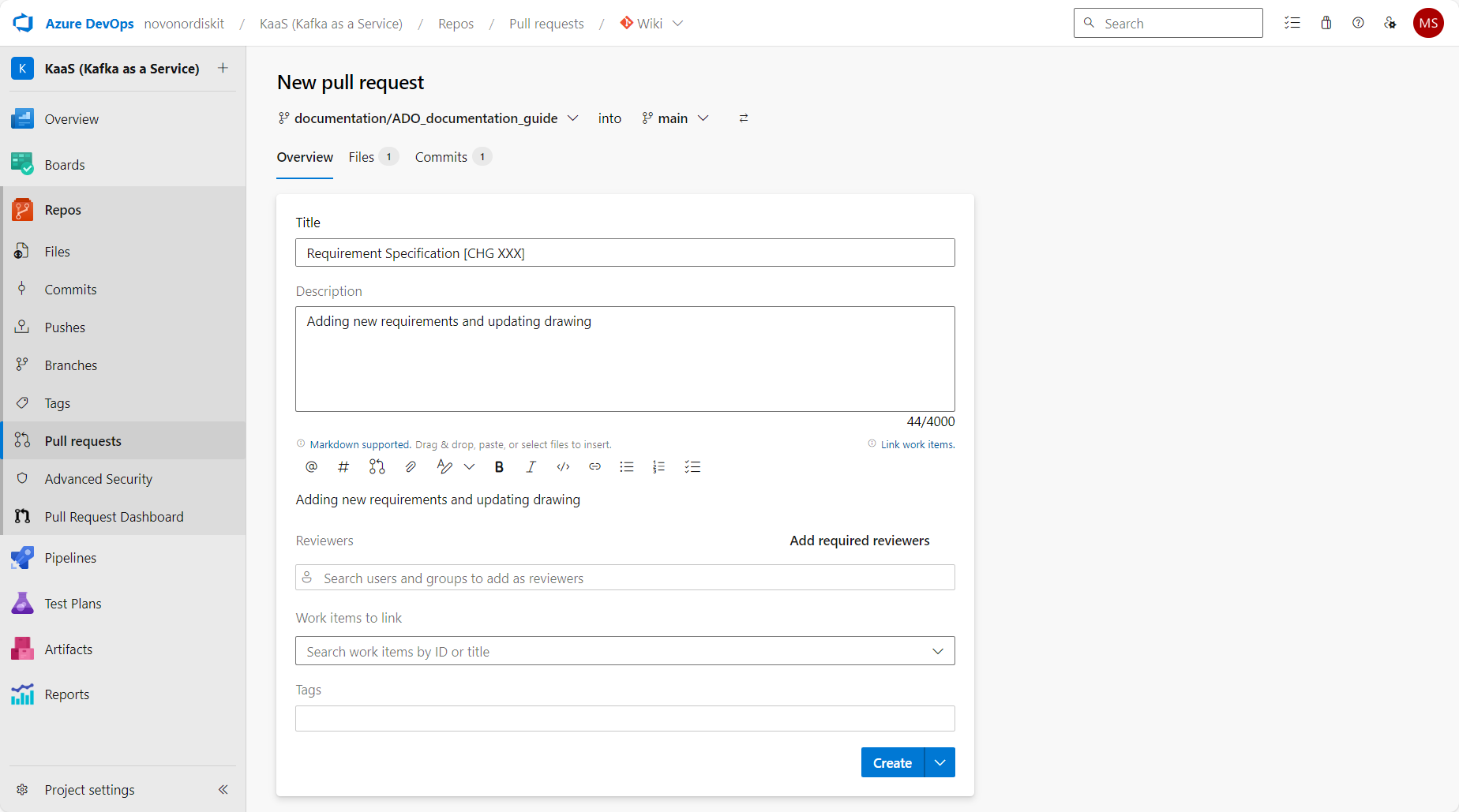
- When all changes are completed, create a pull request (PR)
- Go to Azure Devops here.
- In the left menu go to Repos > Pull requests > (Select Repo from top bar) > 'New pull request'
- Reference the ServiceNow change ID in PR if needed
- If you are updating the Product section, the ID created by PR should be referenced in controlled document headers and changelog
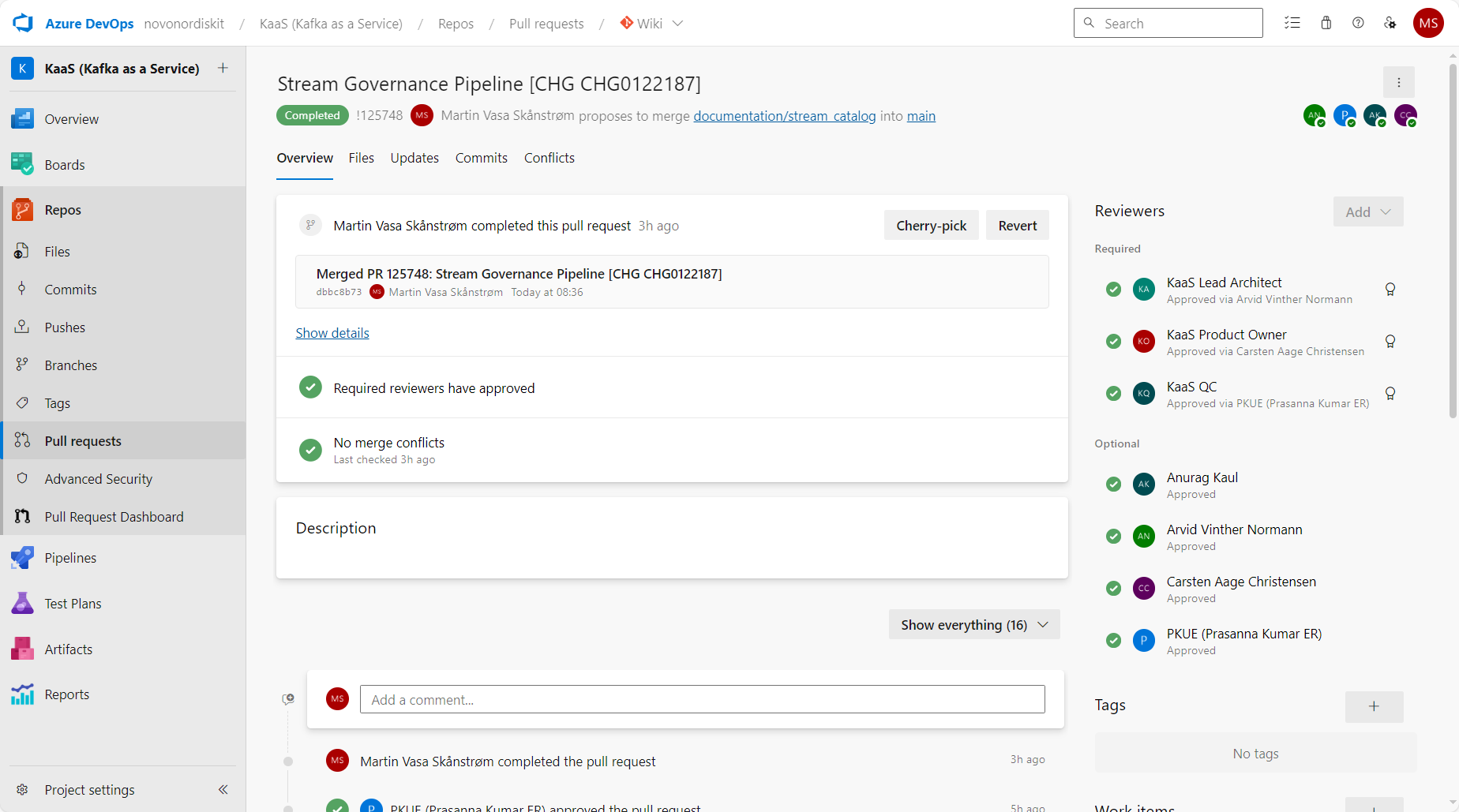
- Review and approve pull request, to merge updates into main (making it approved version)
- Repos > Pull requests > (Select Repo from top bar) > Active > Select relevant
- Reviewers and approvers should in most cases be automatically added by policies
Lint pipeline for Pull Requests
One of the checks running on the documentation before PRs can be merged is a markdown linting tool that ensures the format is in a valid and working state before publication. If this pipeline fails, do the following to correct your warnings:
- Open the failed pipeline by clicking it within your open Pull Request
- Click on the error that typically says "Bash exited with code '1'."
- Look for warnings in the logs such as:
This indicates that links are broken, not pointing to a *.md
1
2
   WARNING -  Doc file '.../Verification-Strategy.md' contains a link 'Platform-Release-1.0', but the target '.../Platform-Release-1.0' is not found among documentation files. Did you mean 'Platform-Release-1.0.md'?
   WARNING -  Doc file 'Platform-Handbook/Platform-Releases/Verification-Strategy.md' contains an unrecognized relative link '../../Products/Solution-Designs', it was left as is. Did you mean '../../Products/Solution-Designs.md'?
- Look for warnings in the logs such as:
- Once you have fixed the warnings make a new commit on the PR and check if they are gone in the subsequent pipeline run